🛠️ How to Update Icons and Contact Information on Your Website
Keeping your website information updated is important for visitors and customers. In this guide, you’ll learn how to change icons, text, and contact details step by step.
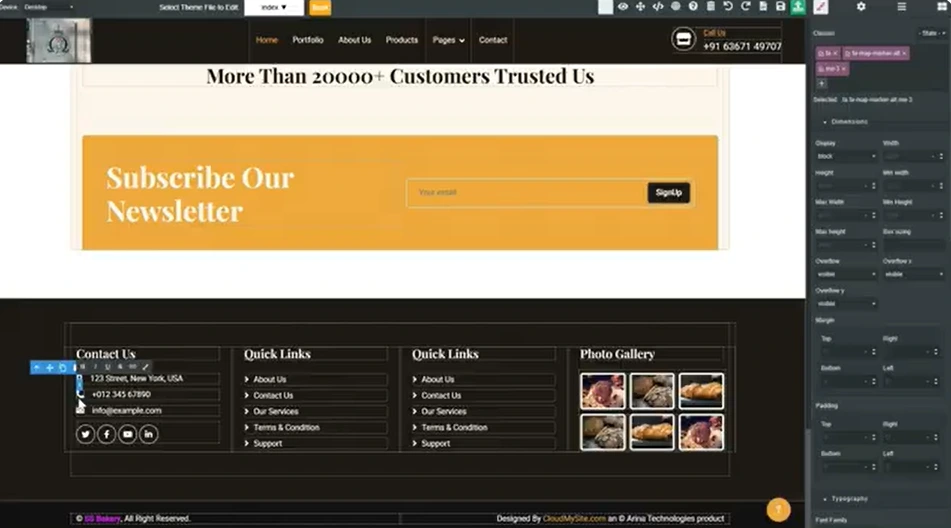
✏️ Step 1: Edit Icons
- Click on any icon in your footer or header.
- Go to Settings.
- If you see something unnecessary like CartPulse, you can simply remove it.
- The store’s appearance will update immediately.
🛍️ Step 2: Edit Store Section
- Double click on the Store section.
- You can directly make changes to text or details displayed there.
☎️ Step 3: Update Contact Number
- Double click on the phone number field.
- Replace it with your current contact information.
- This ensures visitors always have the correct details.
💾 Step 4: Save Changes
After making edits to icons, store details, or contact number, always save your changes to ensure they are applied on your live website.
✅ Final Result
With these simple steps, you can:
- Remove or update unnecessary icons
- Modify store-related details
- Update phone numbers or contact info
This helps your website stay professional, accurate, and user-friendly.