🖼️ How to Change Image and Background Image
Updating images is one of the simplest ways to refresh your website's design.
With CloudMySite’s Website Builder, you can change regular images as well as background images in just a few clicks.
This guide will show you exactly how to replace images using the Layers Panel and the Edit Image settings.
🛠️ Step 1: Open the Website Builder
Start by opening your website inside the CloudMySite Website Builder.
Wait for the editor to fully load so all tools and sections become visible.
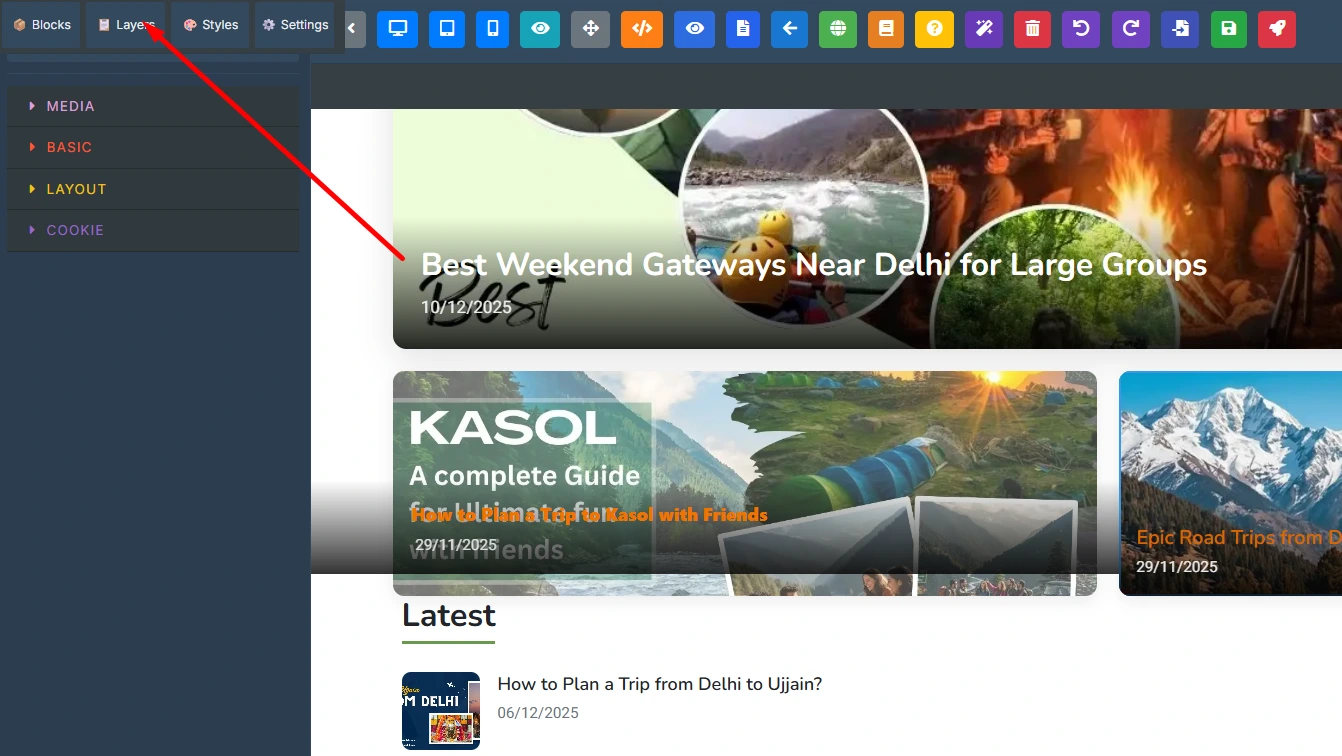
🗂️ Step 2: Open the Layers Section
- On the left side of the editor, click the Layers panel.
- Here you will see all the sections, rows, columns, images, texts, backgrounds, and other elements of your page.
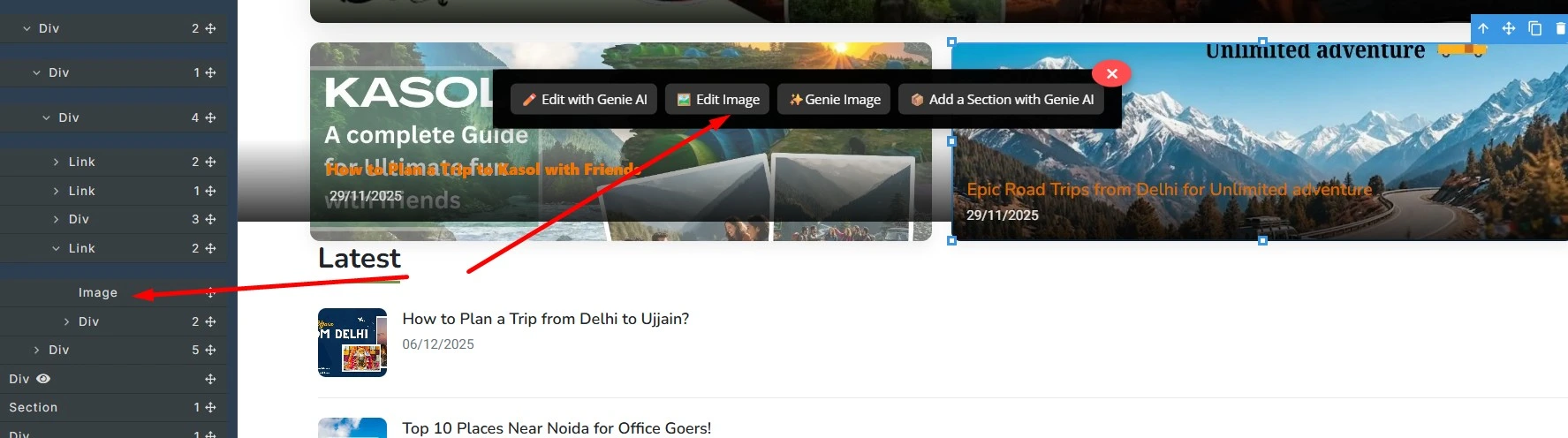
- Navigate through the list to find the image you want to edit.
🖼️ Step 3: Select the Image & Click “Edit Image”
Once you locate the image inside the Layers panel:
- Click on the image name in the Layers list.
- Then click the Edit Image button in the right-side settings panel.
This will open the Image Editing window.
🎨 Step 4: Choose How You Want to Change the Image
After clicking Edit Image, you will see four options for updating your image:
1️⃣ Genie AI Image Generate
Use AI to generate a brand-new image based on your keywords.
Perfect for product visuals, banners, concepts, and creative ideas.
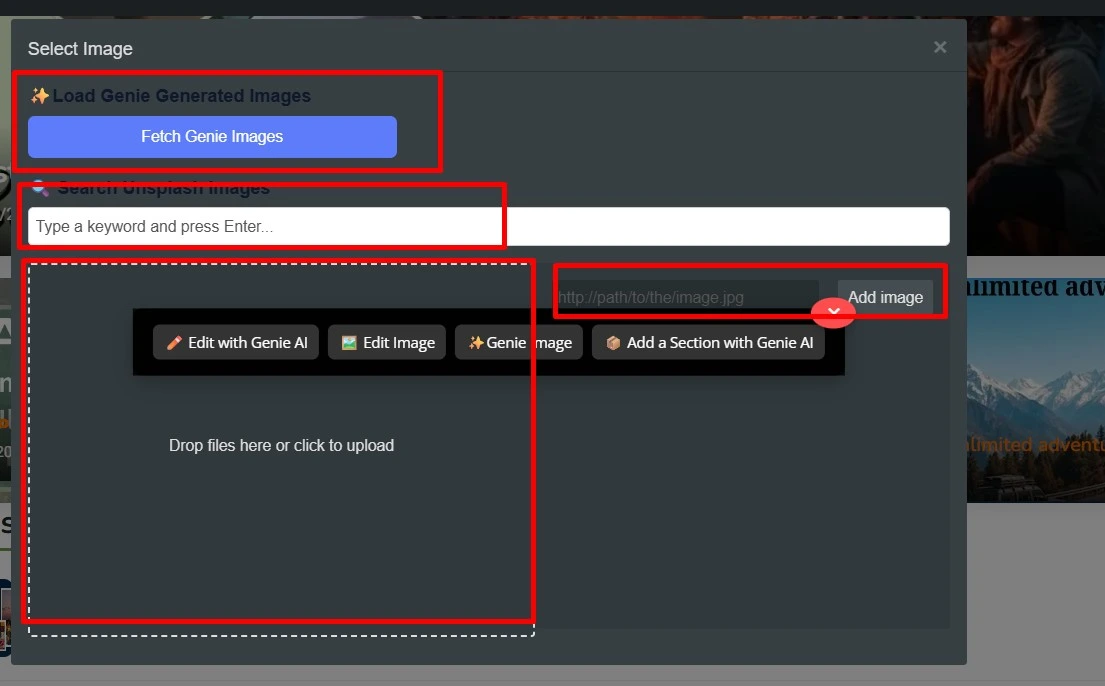
2️⃣ Replace Image Using Keywords
Type a keyword like "office", "coffee", "travel", "business", etc.
The editor will search and suggest images related to your keyword.
3️⃣ Upload Your Own Image
Click Upload, select an image from your computer, and it will be added instantly.
4️⃣ Update Image Using URL
Paste a direct image link (URL), and the builder will import the image for you.
After selecting any option, simply double-click the image on the canvas to apply and update it.
🖼️ How to Change a Background Image
You can change background images using similar steps:
- Select the section/column/row in the Layers panel.
- Go to Styles → Decorations → Background Image.
- Upload, generate, or insert a new background image.
- Adjust settings like:
- Background Size
- Background Repeat
- Background Position
✅ Final Result
With these steps, you can easily:
- Change any image
- Use AI-generated visuals
- Replace images using keywords
- Upload personal images
- Apply background images
- Customize your page layout professionally
This makes designing your website fast, flexible, and efficient.
If you want, I can also write:
📌 “How to change text” guide
📌 “How to edit footer/header” guide
📌 “How to change buttons & colors” guide
📌 MDX + screenshots + thumbnails
Just tell me!