🖼️ How to Change Background Image (and Stop It Repeating)
Sometimes a background image looks perfect in preview but shows up repeated when applied to a section.
This usually happens when the image is small (for example, 400×272 px) and the CSS has background-repeat enabled.
Here’s how to change the background image in our editor and fix the repeating issue using Styles → Decorations.
🛠️ Step 1: Select the Section or Block
- Open your page in the website editor.
- Click the section, row, or block where you want the background image.
- Make sure the right element is selected (you should see its name/label in the editor panel).
🎨 Step 2: Open Styles → Decorations
- In the right-hand sidebar, go to Styles.
- Click on Decorations.
- Look for the Background options (image, color, repeat, size, position, etc.).
This is where you’ll control how your background behaves.
🖼️ Step 3: Choose or Replace the Background Image
- In Styles → Decorations → Background Image, click the image picker or upload button.
- Select your file from the media library or upload a new one.
- The background will update immediately on the canvas.
💡 If you use a small image (for example, 400×272 px), the browser will usually tile/repeat it to fill the whole area — that’s why you see the pattern repeating.

You can also use a larger image (for example, 1920×1080 or similar) if you want a full-width, non-repeating hero background.
🔁 Step 4: Stop the Background from Repeating
If your background is showing as a repeated pattern, adjust the repeat and size settings.
In Styles → Decorations → Background, set:
- Repeat:
No repeat - Size:
Cover(orContain, depending on your layout) - Position:
Center(orCenter Center)
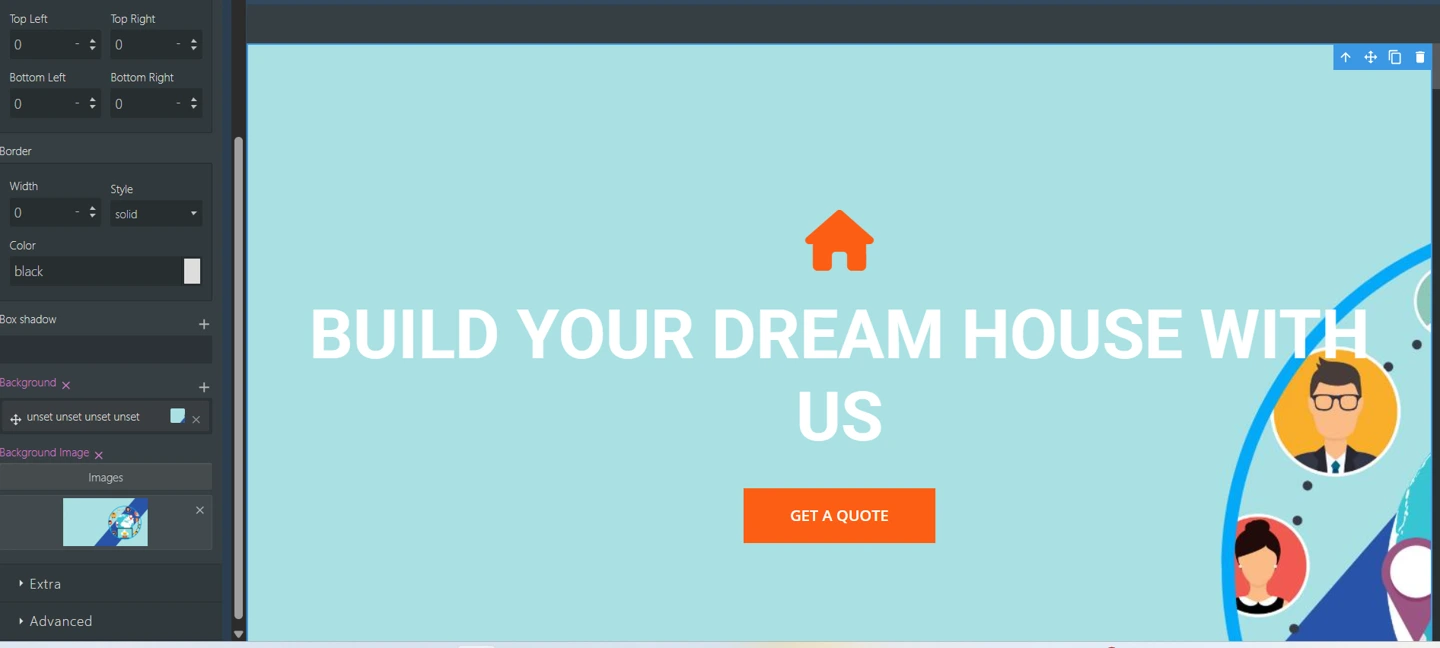
In CSS terms, this is the equivalent of:
background-repeat: no-repeat;
background-size: cover;
background-position: center center;

## Related resources

- [Website Builder docs](/docs/website-builder)
- [How the Website Builder works](/docs/website-builder/how-it-works)