View and Manage Support Tickets
The ticket area helps you track support requests from creation to resolution. You can view active tickets, open closed tickets, search by keyword, read conversation history, review ticket details, and close a ticket when the issue is resolved.
Open the ticket list
- Sign in to your CloudMySite account.
- Open the Support Center.
- Select Tickets from the left menu.
The ticket list will appear on the left side of the workspace.
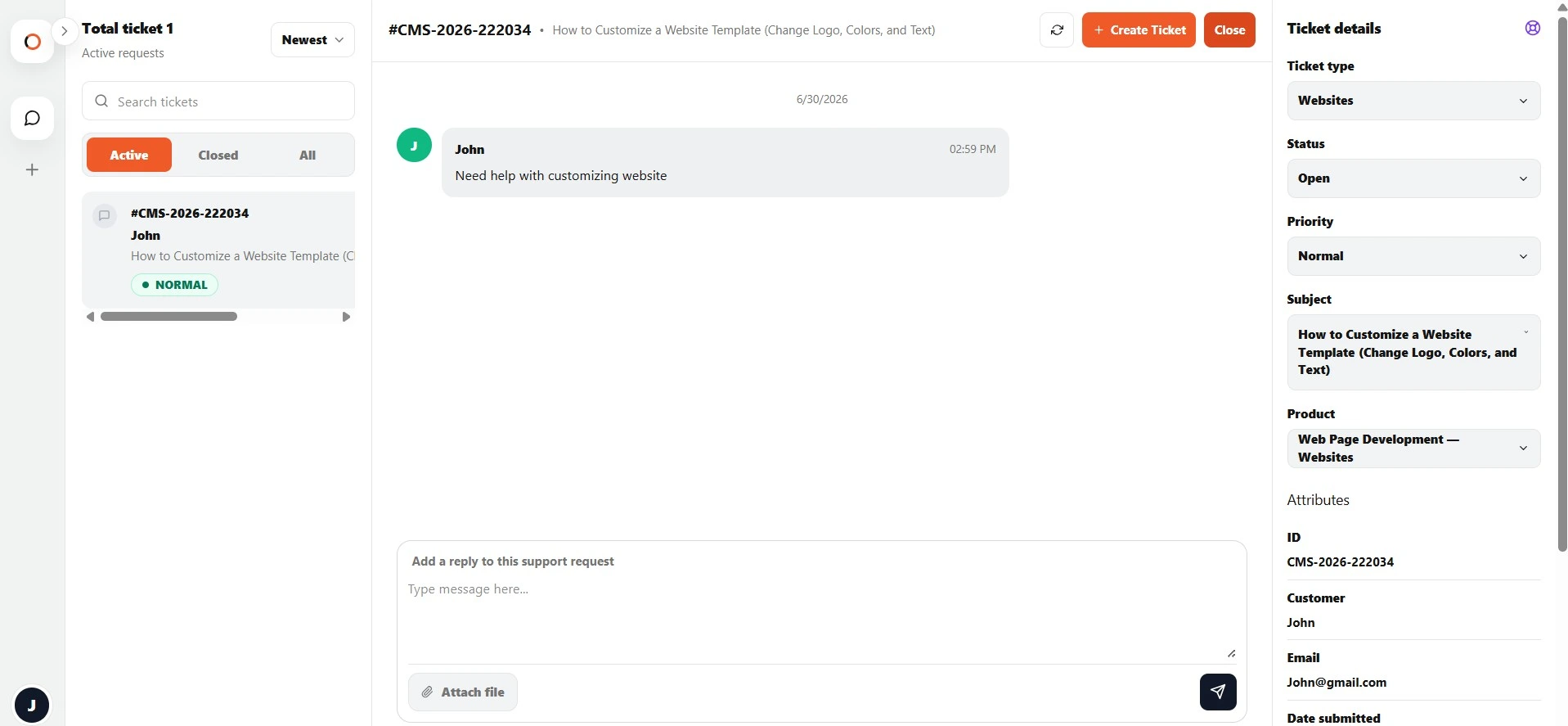
Ticket list information
Each ticket row may show:
| Field | Meaning |
|---|---|
| Ticket number | Unique support reference number. |
| Customer name | Name connected to the ticket. |
| Subject | Short description of the request. |
| Priority | Low, Normal, High, or Urgent. |
| Time | Last update time. |
| Status indicator | Shows whether the ticket is still active. |
Click a ticket row to open the full conversation.
Filter tickets
Use the status filters to control which tickets are shown.
Active
Shows tickets that are still open.
Use this view for requests that still need attention.
Closed
Shows tickets that have already been closed.
Use this view to review past issues or find previous answers.
All
Shows both active and closed tickets.
Use this view when you are not sure whether a ticket is still open.
Sort tickets
Use the sort dropdown to change the ticket order.
Options may include:
| Sort option | Result |
|---|---|
| Newest | Most recently updated tickets appear first. |
| Oldest | Older tickets appear first. |
Search tickets
Use the search box to find a ticket quickly.
You can search by:
- Ticket number
- Subject
- Product name
- Product category
- Priority
- Status
- Customer name
Example searches:
domain
urgent
website not loading
newsletter
CMS-2026
Open a ticket
To open a ticket:
- Go to Tickets.
- Find the ticket in the list.
- Click the ticket row.
The conversation will open in the main workspace.
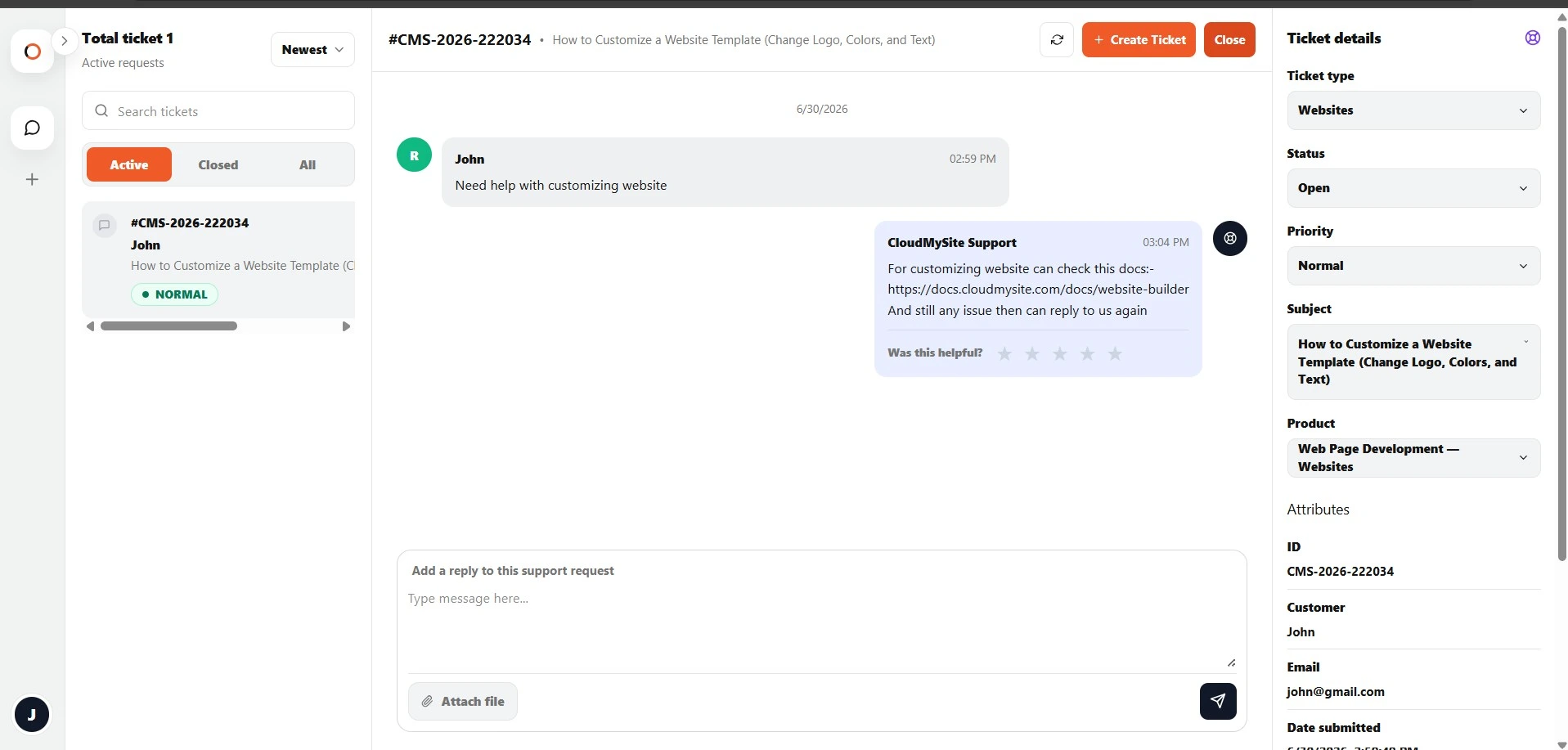
Understand the ticket conversation
The conversation area shows messages in chronological order.
Messages may come from:
| Sender | Meaning |
|---|---|
| You | Your messages or replies. |
| CloudMySite Support | Replies from the support team. |
| System Update | Automatic support updates, such as inactivity warnings or closure notices. |
| Support Assistant | Messages saved from assistant conversations, when available. |
View ticket details
The right panel shows ticket details.
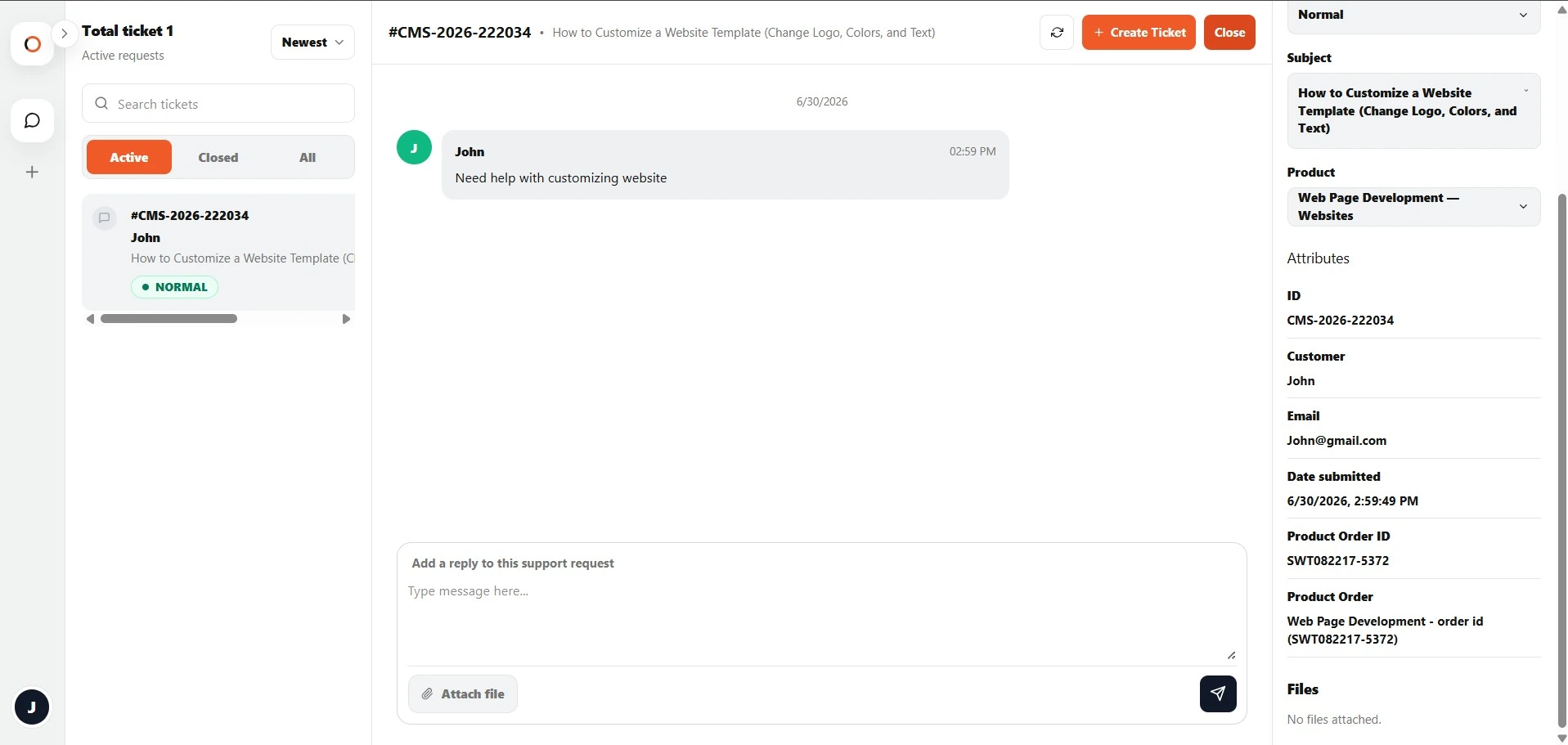
Details may include:
- Ticket ID
- Customer name
- Email address
- Date submitted
- Product
- Product category
- Subject
- Priority
- Status
- Product order ID, if selected
- Product order label, if selected
- Attached files
Product order information
If you selected a product/order ID when creating the ticket, it appears in the ticket details.
If no product/order ID was selected, the ticket will show:
Not selected
This does not affect the ticket. Support can still help you.
Update ticket details
Depending on ticket status, you may be able to update some ticket details, such as:
- Ticket type
- Priority
- Subject
- Product
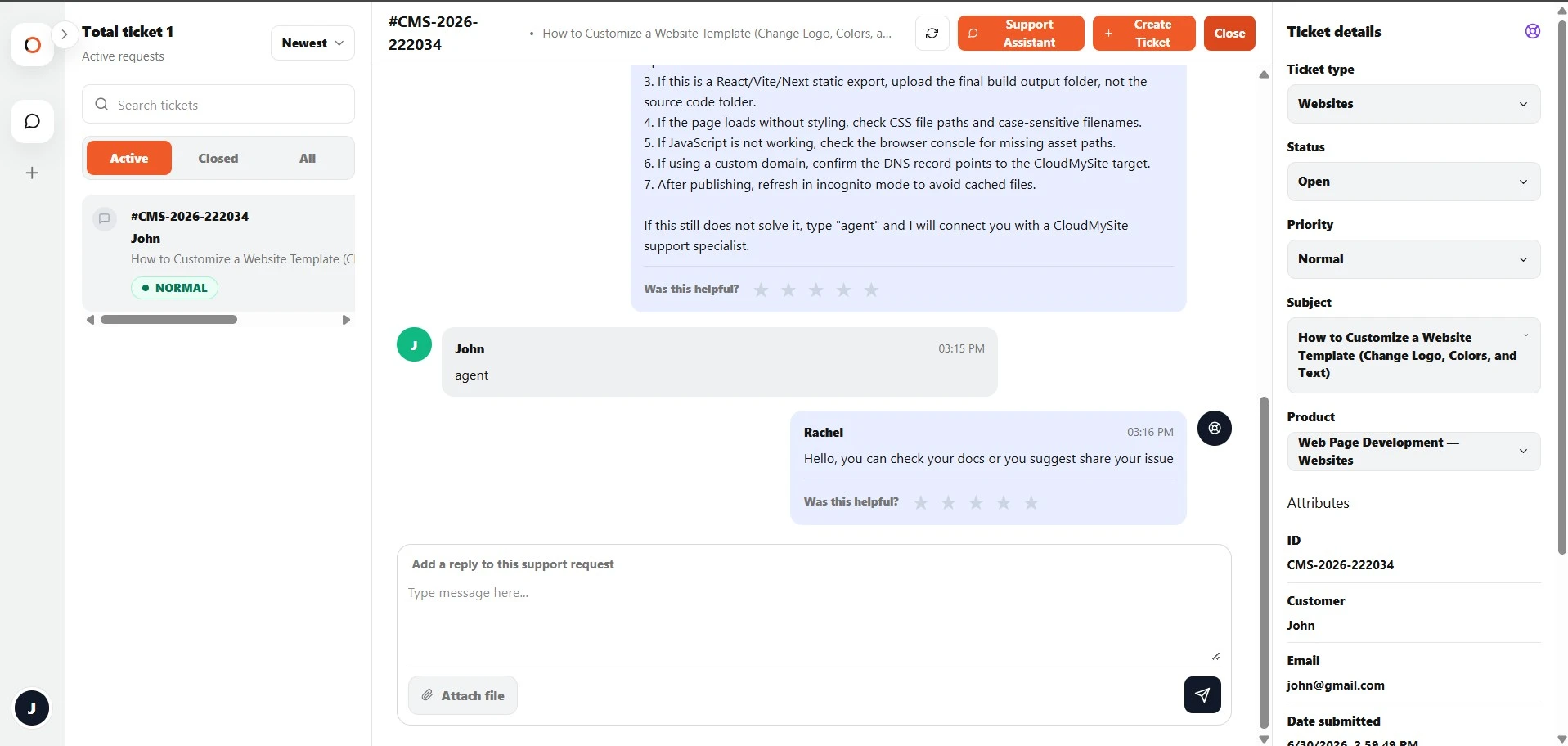
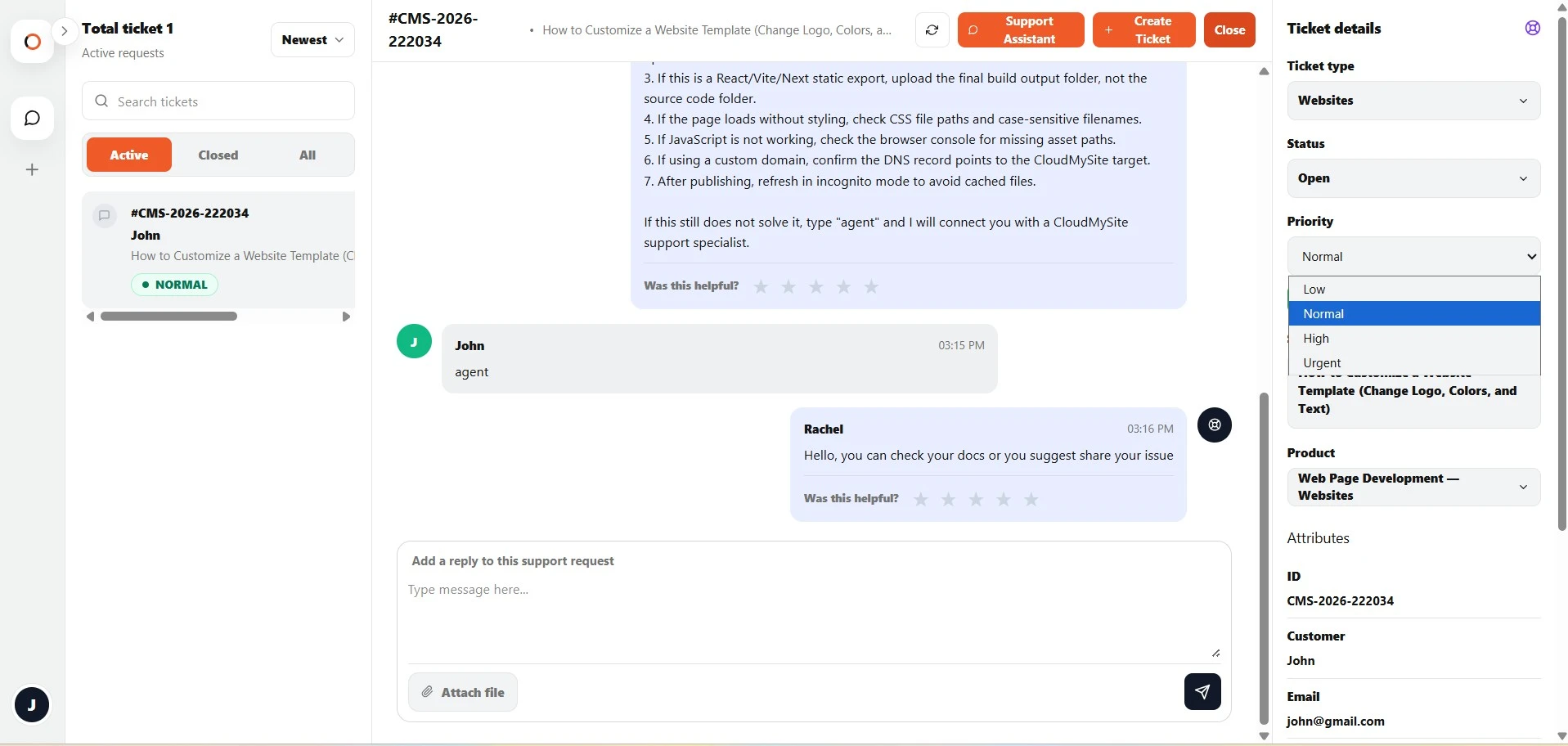
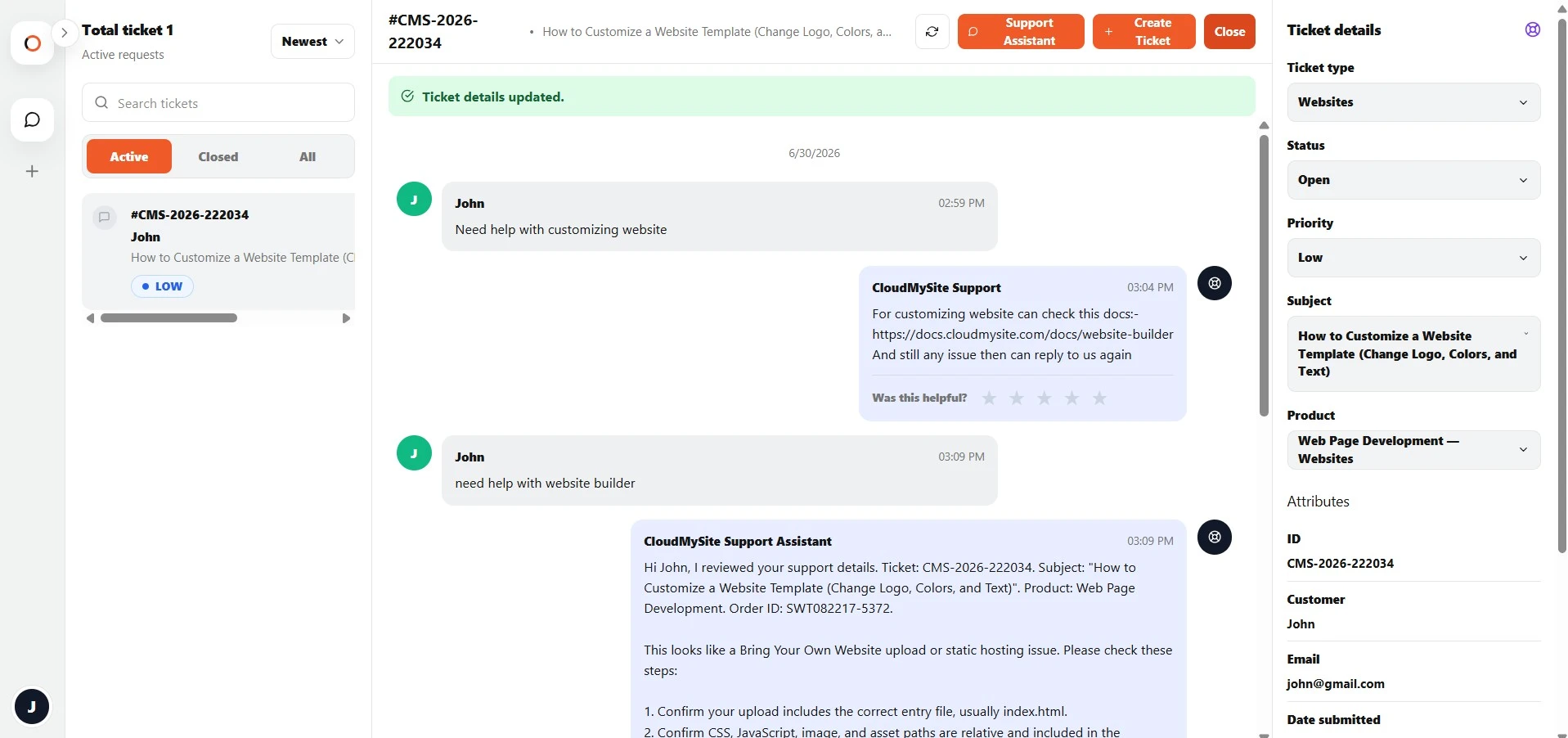
After editing, save the change. The ticket will refresh with the updated information.
Closed tickets
Closed tickets are locked for replies and editing.
When a ticket is closed, you can still view:
- Conversation history
- Ticket details
- Attachments
You cannot add new replies to a closed ticket.
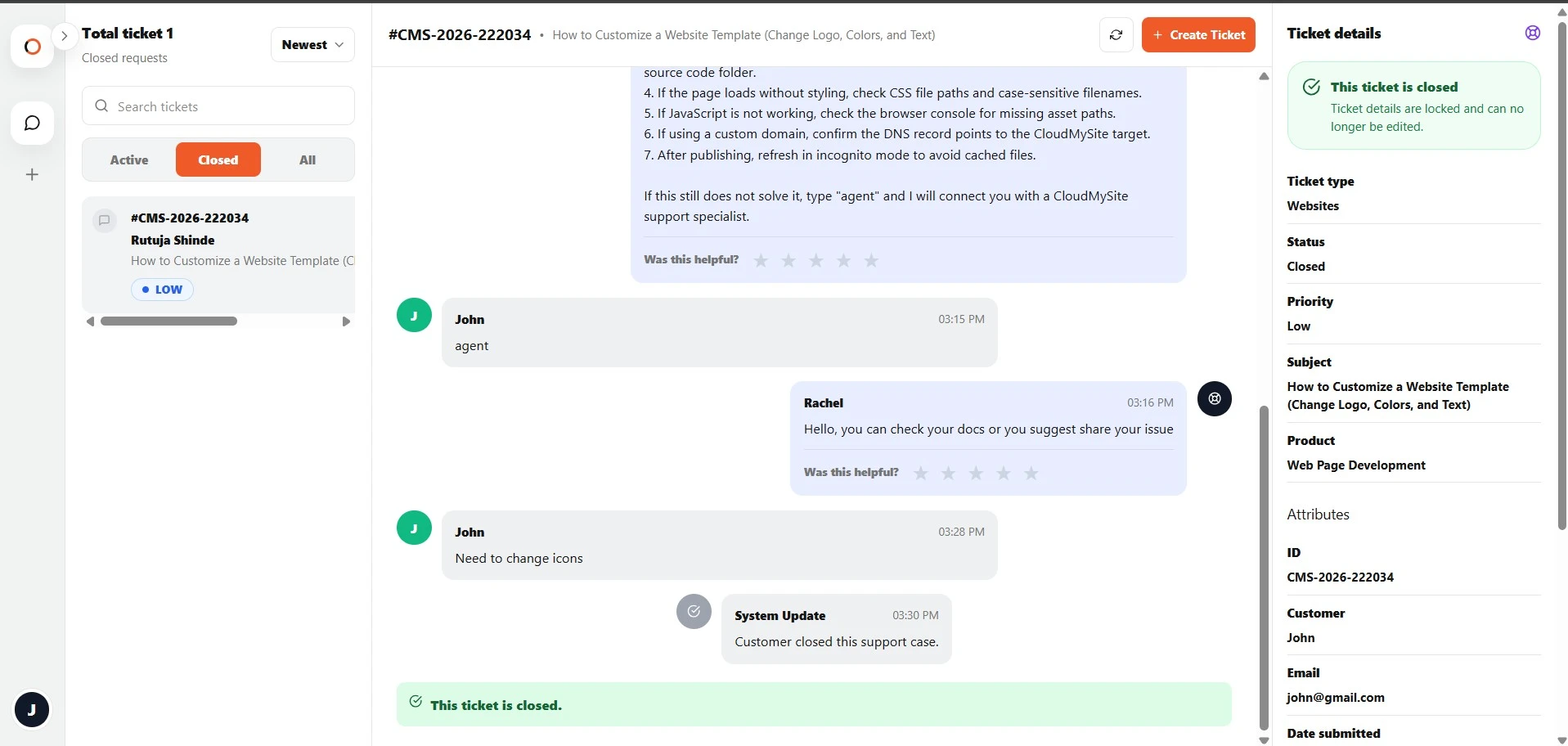
If you still need help after a ticket is closed, create a new ticket and include the previous ticket number for reference.
Close a ticket manually
If your issue is resolved, you can close the ticket.
- Open the ticket.
- Click Close in the top-right area.
- The ticket status will change to closed.
Only close a ticket when you no longer need help on that request.
Automatic inactivity warning
If there is no activity on a ticket for several days, the Support Center may add a system warning message.
The warning lets you know the ticket may close automatically if there is no reply.
To keep the ticket open, reply in the ticket conversation.
Automatic closure
If there is still no reply after the inactivity warning period, the ticket may be closed automatically.
A system message will appear in the conversation.
If you still need help, create a new ticket.
Tips for managing tickets
- Keep one issue in one ticket.
- Do not create duplicate tickets for the same problem.
- Reply with updates in the same conversation.
- Attach screenshots when they help explain the issue.
- Close the ticket after the issue is resolved.
- Search closed tickets before opening a new request for the same topic.