Use the Support Assistant
The CloudMySite Support Assistant helps you get guided help for an existing support ticket. It can review your ticket context, answer questions, and help route you to a support specialist when needed.
What the Support Assistant does
The Support Assistant can help with:
- Understanding the next step for a support request
- Explaining common product setup issues
- Reviewing ticket context
- Helping with product-related questions
- Guiding you before a support specialist joins
- Continuing the conversation from an existing ticket
When the Support Assistant is available
The Support Assistant appears only when it is available for your account and ticket.
You may need:
- A signed-in CloudMySite account
- An existing support ticket
- An eligible product or active plan
- A selected ticket conversation
If the button does not appear, you can still use regular support tickets.
Open the Support Assistant
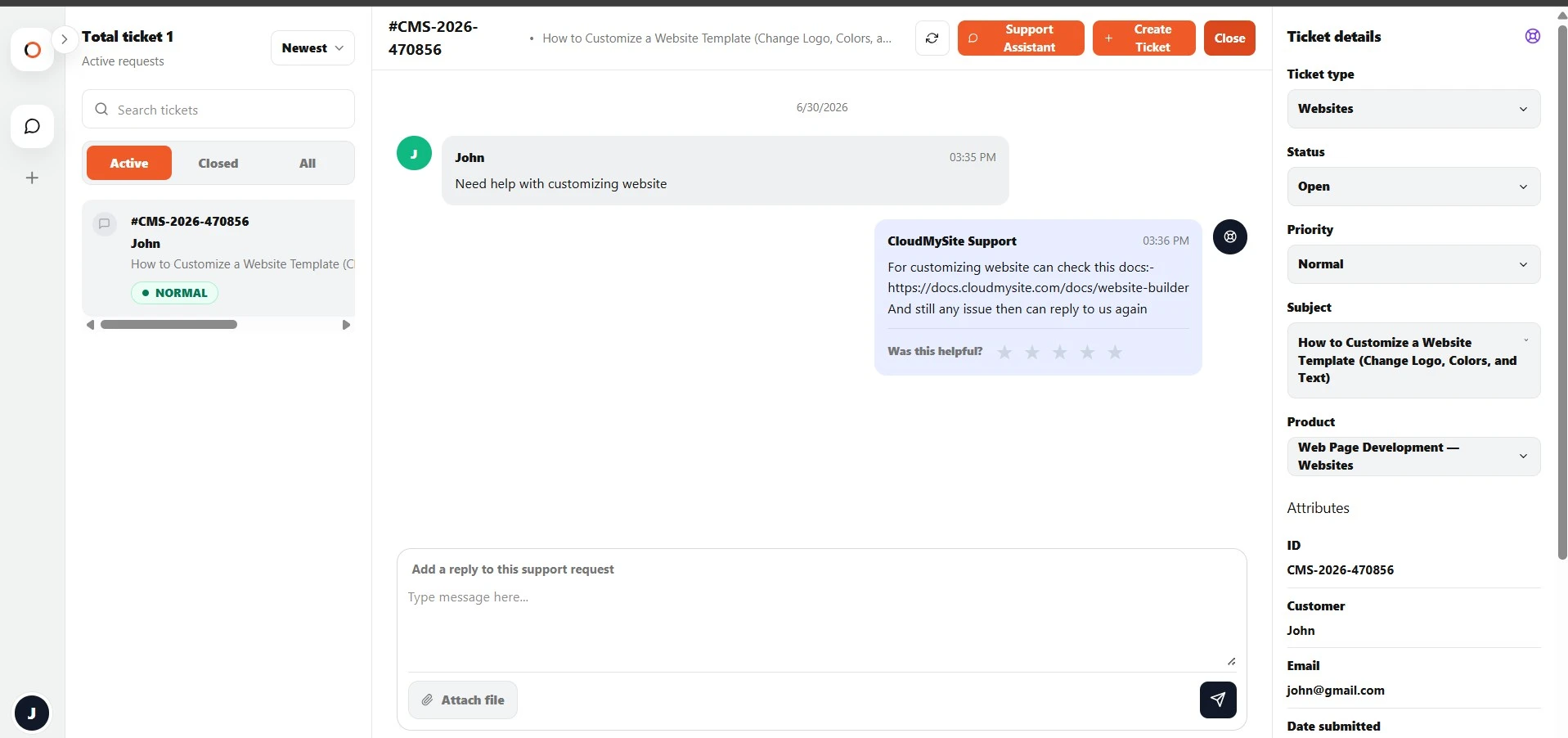
To open the assistant:
- Go to the Support Center.
- Open an existing ticket.
- Click Support Assistant in the top-right area.
- Wait for the assistant to connect.
Connection status
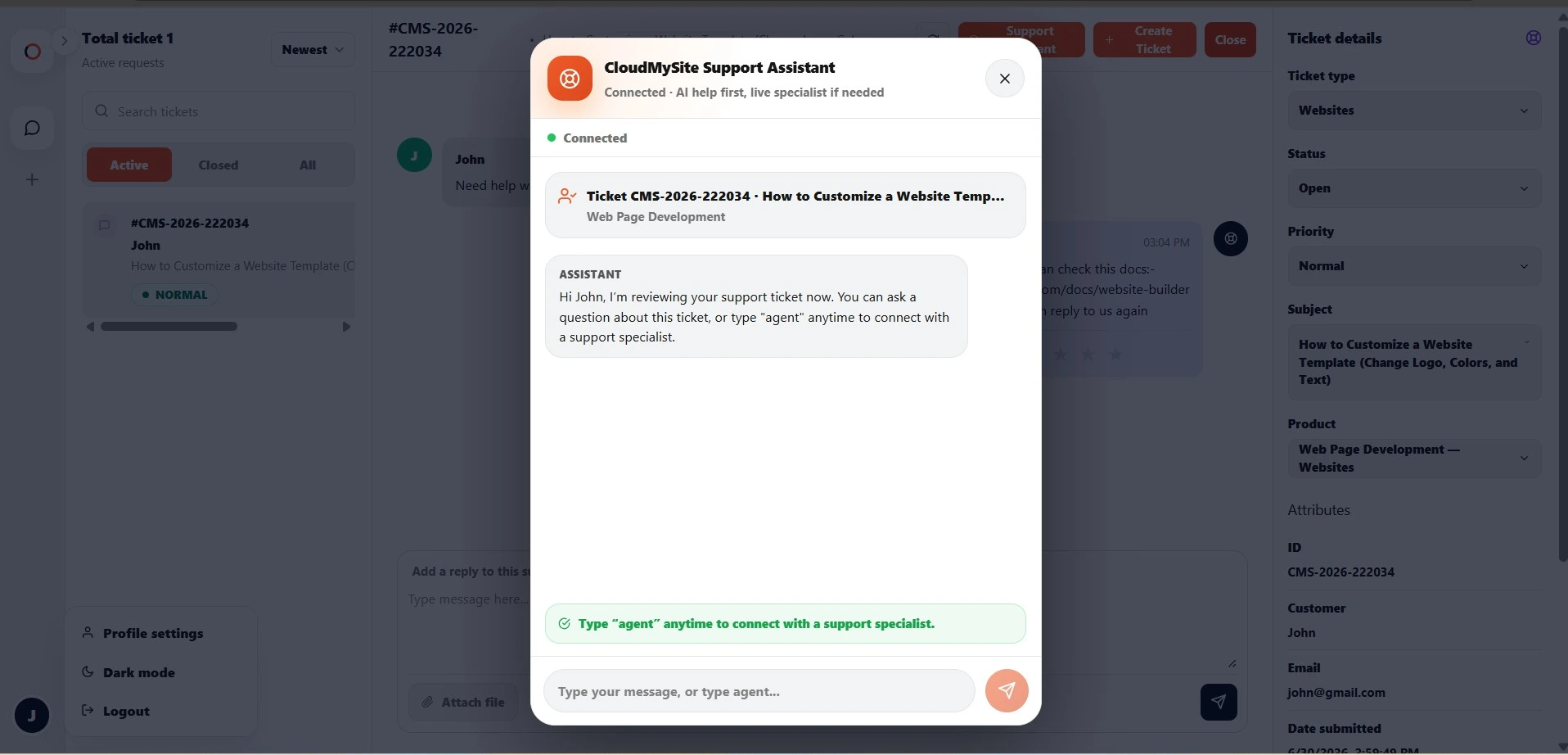
The assistant shows a connection status at the top.
Common statuses:
| Status | Meaning |
|---|---|
| Connecting | The assistant is preparing the chat. |
| Connected | You can send a message. |
| Typing | The assistant or specialist is responding. |
| Interrupted | The connection was interrupted. |
| Ended | The chat session has ended. |
| Unable to connect | The assistant could not start. Try again later. |
Ticket context
When you open the assistant from a ticket, the assistant can use ticket context such as:
- Ticket number
- Subject
- Product
- Product category
- Product name
- Product order ID, if selected
- Original ticket description
If no product order ID was selected, that is okay. The assistant can still help with the ticket.
Send a message
Type your message in the input box and press Enter or click the send button.
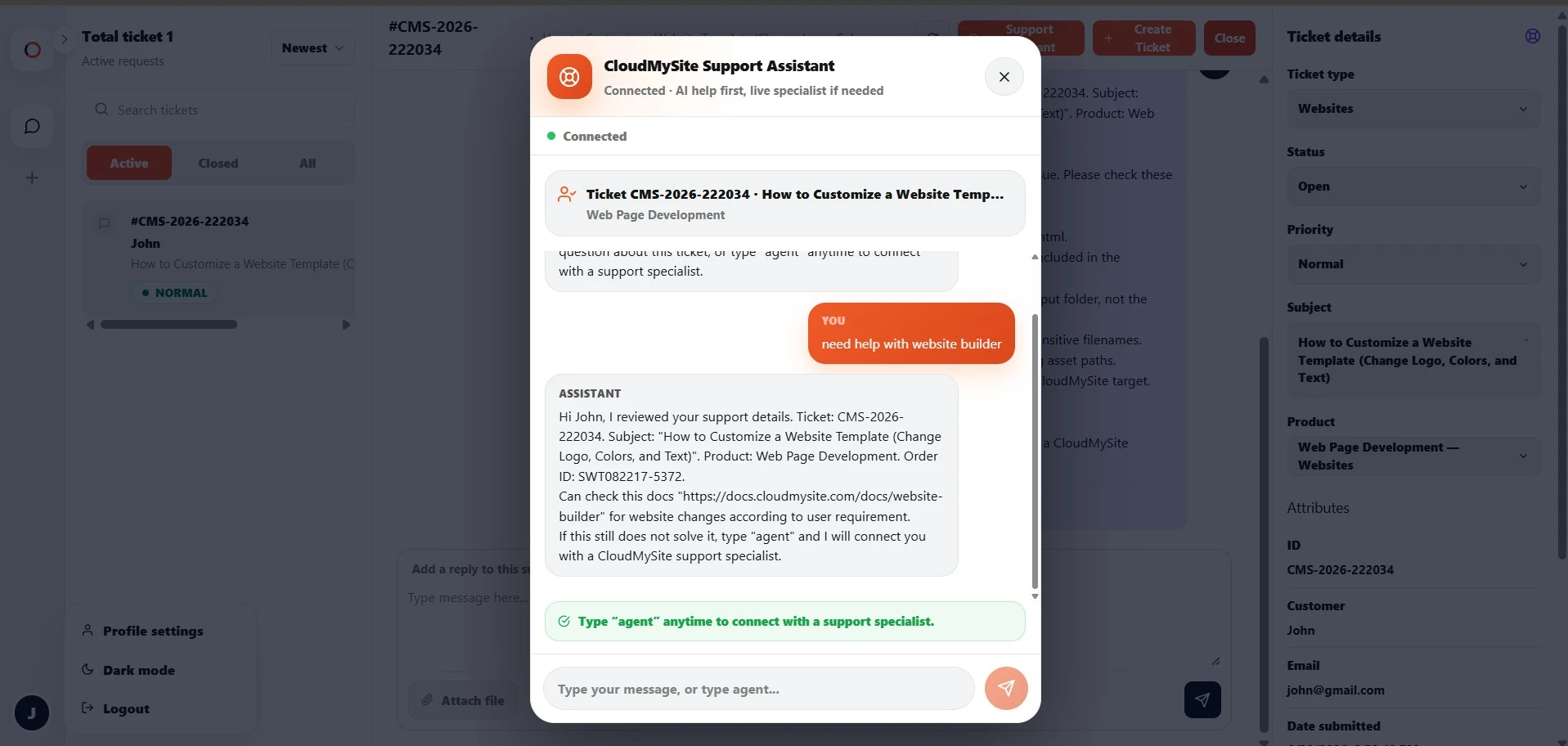
Example questions:
Can you help me understand what information support needs?
My website is not loading. What should I check first?
Can you summarize this ticket?
What should I provide for my domain issue?
Ask for a support specialist
You can type:
agent
when you want to connect with a support specialist.
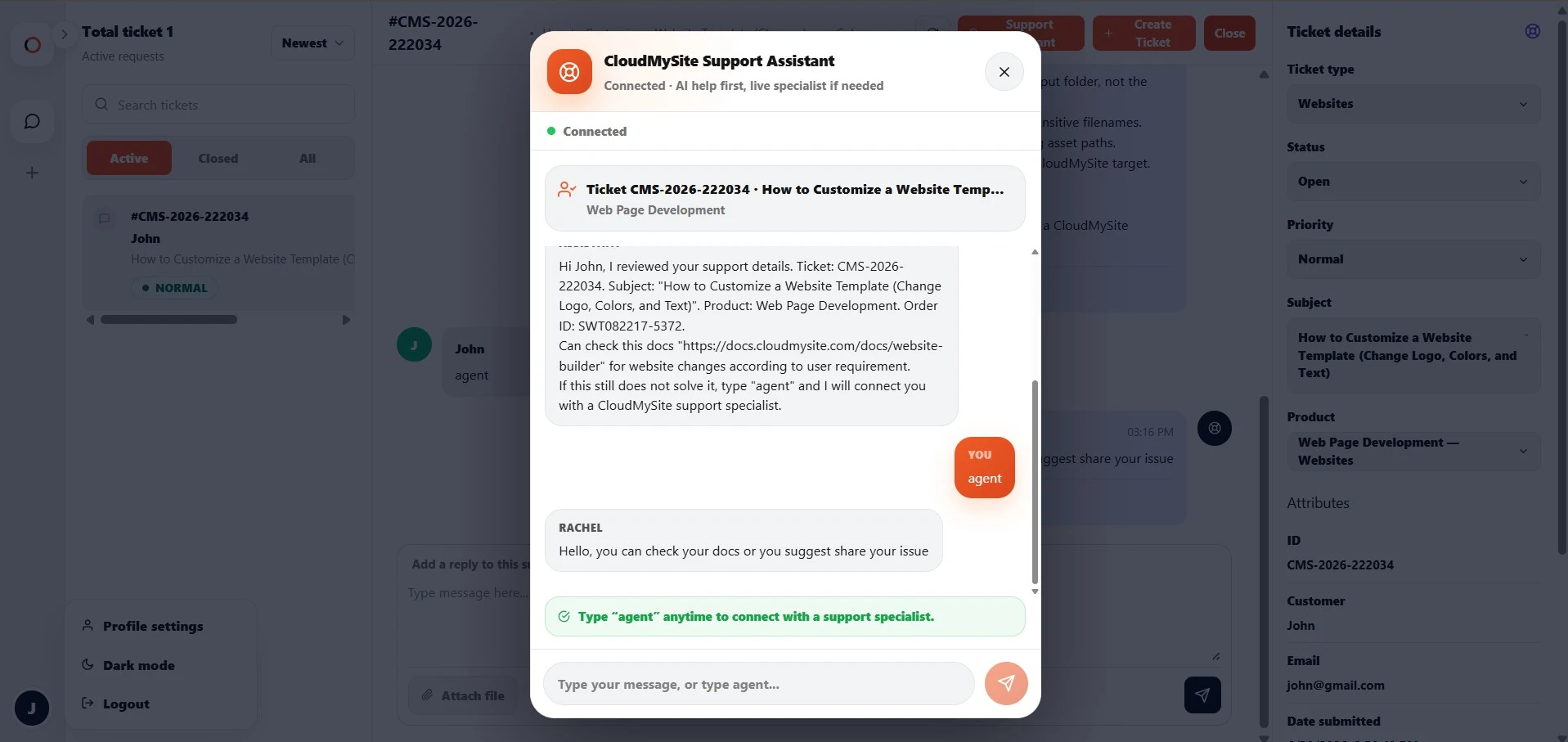
The assistant may pass along your ticket and product details so the support specialist has context.
Assistant messages in the ticket
Relevant messages from the assistant or specialist may be saved back into the ticket conversation.
This helps keep the ticket history complete.
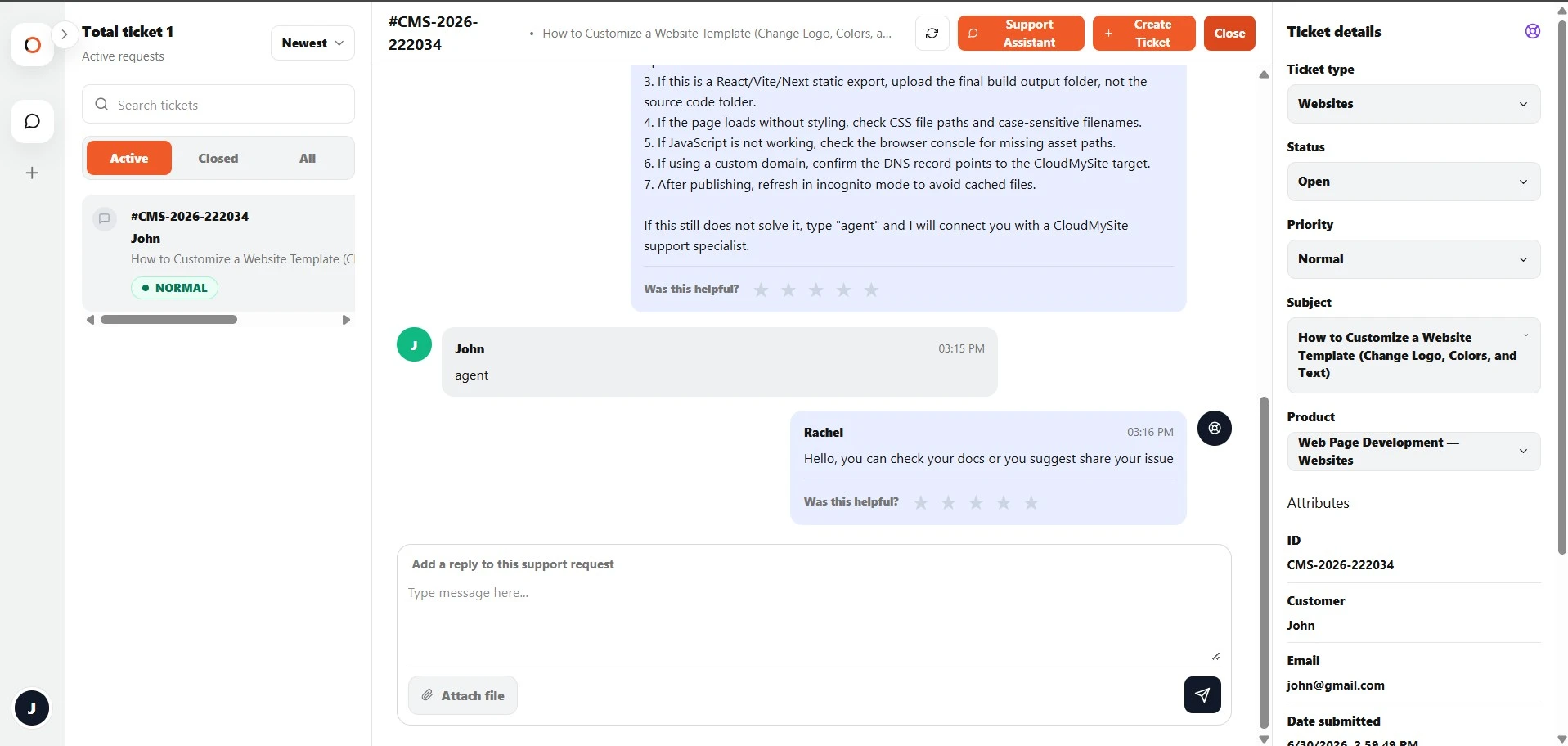
Your ticket conversation may show messages from:
- You
- Support Assistant
- Support specialist
- System updates
Ending the chat
To close the assistant window, click the close button.
Closing the assistant does not delete your support ticket.
If the ticket is still open, you can continue replying in the ticket conversation.
If the assistant cannot connect
If the assistant cannot connect:
- Close the assistant window.
- Refresh the ticket.
- Try opening the assistant again.
- Continue using the ticket reply box if needed.
Good questions to ask
The assistant is most useful when your question is specific.
Good examples:
What information should I provide for this domain transfer issue?
Can you help me troubleshoot why my website is not loading?
What does this error message mean?
Can you help me explain this issue to support?
What should I check before support replies?
What not to share
Do not share sensitive secrets in the assistant chat, such as:
- Passwords
- Private keys
- Full payment card numbers
- Security codes
- One-time passwords
- Recovery codes
If support needs secure access information, they will provide guidance on the safest way to share it.
Support Assistant vs support ticket
| Feature | Support Assistant | Support Ticket |
|---|---|---|
| Best for | Quick guided help and triage | Official support request |
| Requires ticket | Yes | No, ticket is created first |
| Can attach files | Use ticket conversation | Yes |
| Can involve specialist | Yes, when available | Yes |
| Keeps history | Relevant messages may be saved | Full conversation history |
Best practices
- Open the assistant from the correct ticket.
- Ask clear and specific questions.
- Type
agentif you need a person. - Do not share passwords or secret keys.
- Continue important updates in the ticket conversation.
- Close the assistant when finished.