Support Center Overview
The CloudMySite Support Center is the place where you can create support tickets, track existing requests, reply to support conversations, attach files, and use the Support Assistant when it is available for your account.
Use this guide to understand the main areas of the Support Center and how to move around the page.
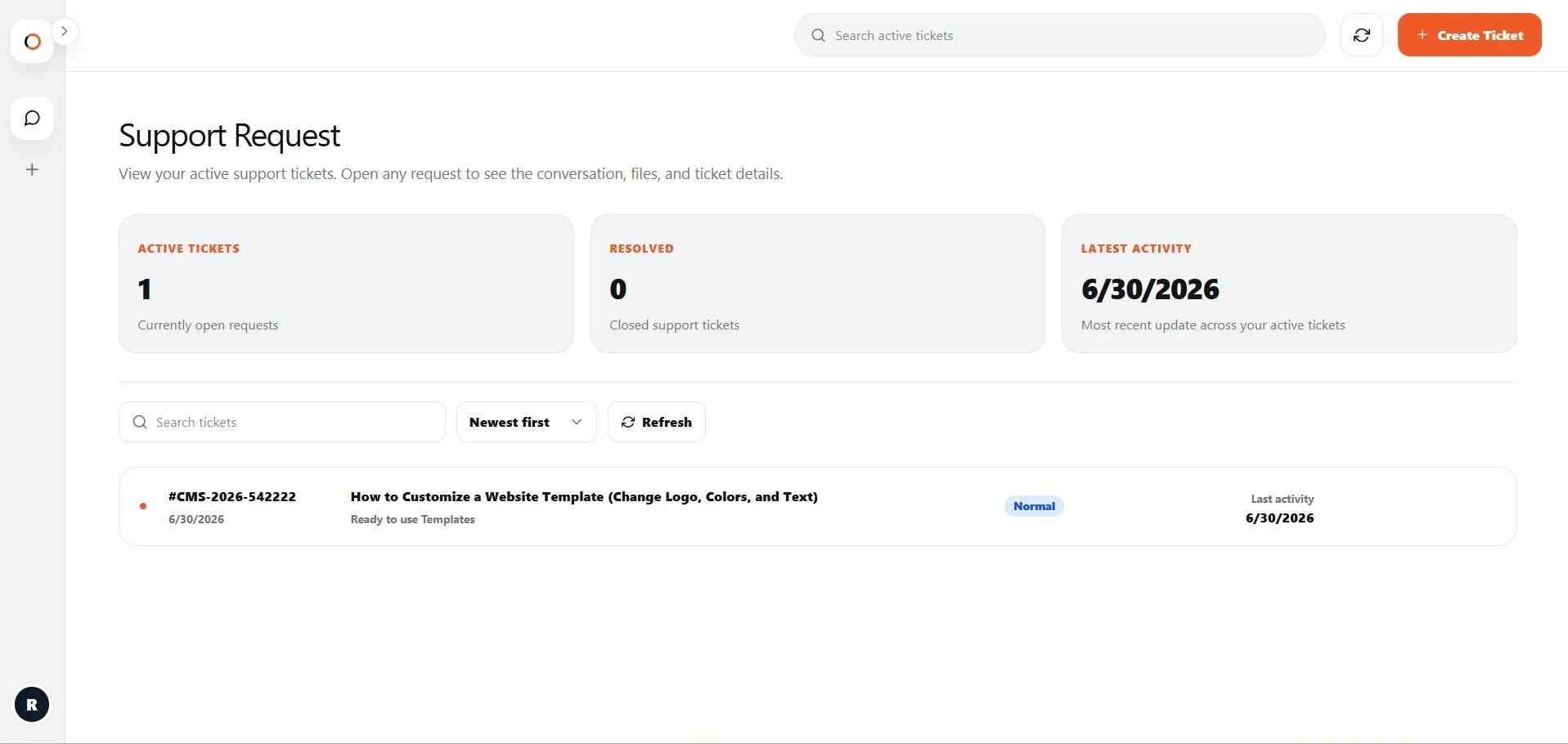
What you can do in the Support Center
From the Support Center, you can:
- Create a new support ticket for a CloudMySite product or service.
- Select the product or order related to your issue.
- View active, closed, or all tickets.
- Open a ticket to read the full conversation.
- Reply to an open ticket.
- Attach supported files to a new ticket or reply.
- Close a ticket when the issue is resolved.
- Use the Support Assistant when it is available for your account.
Main layout
The Support Center is organized into three main areas.
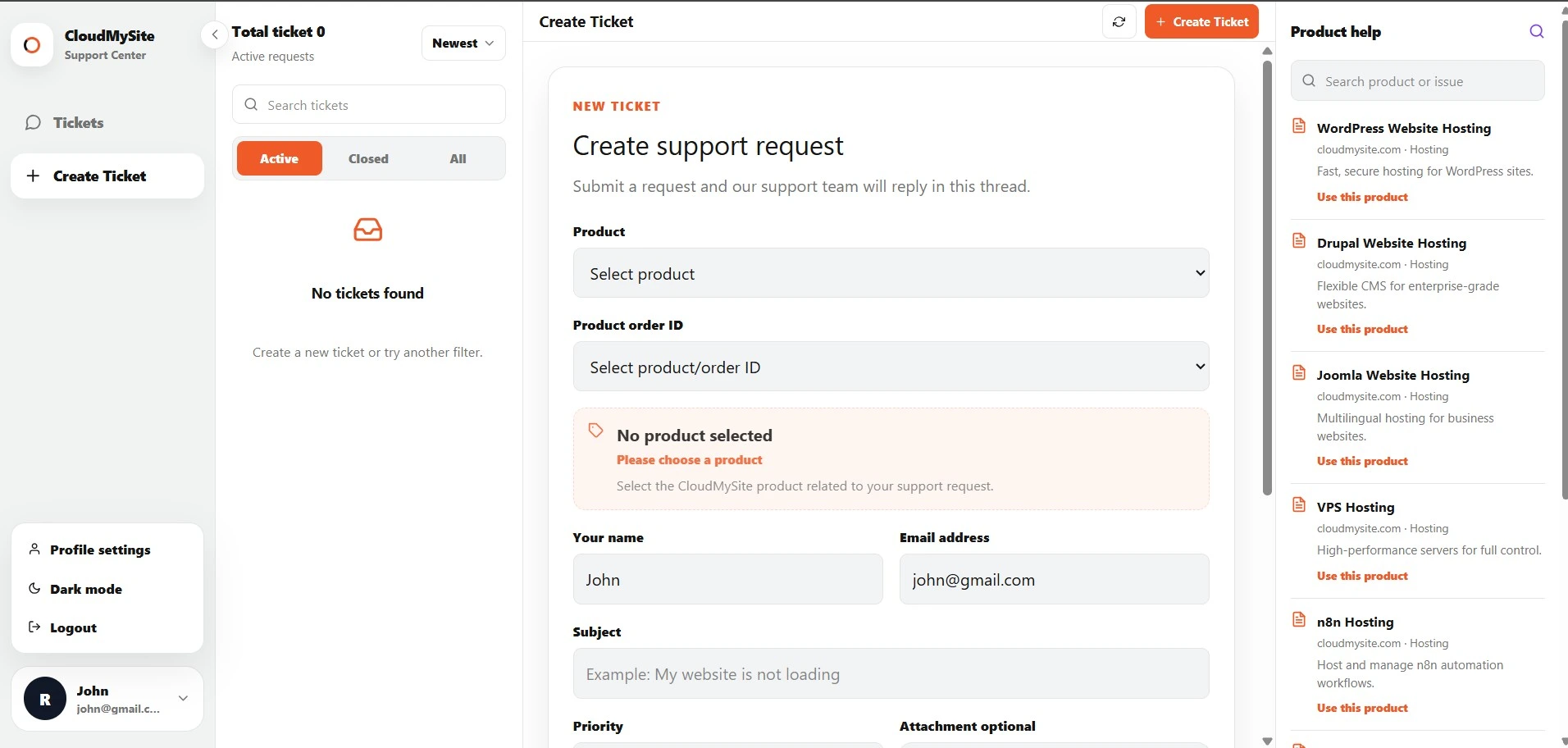
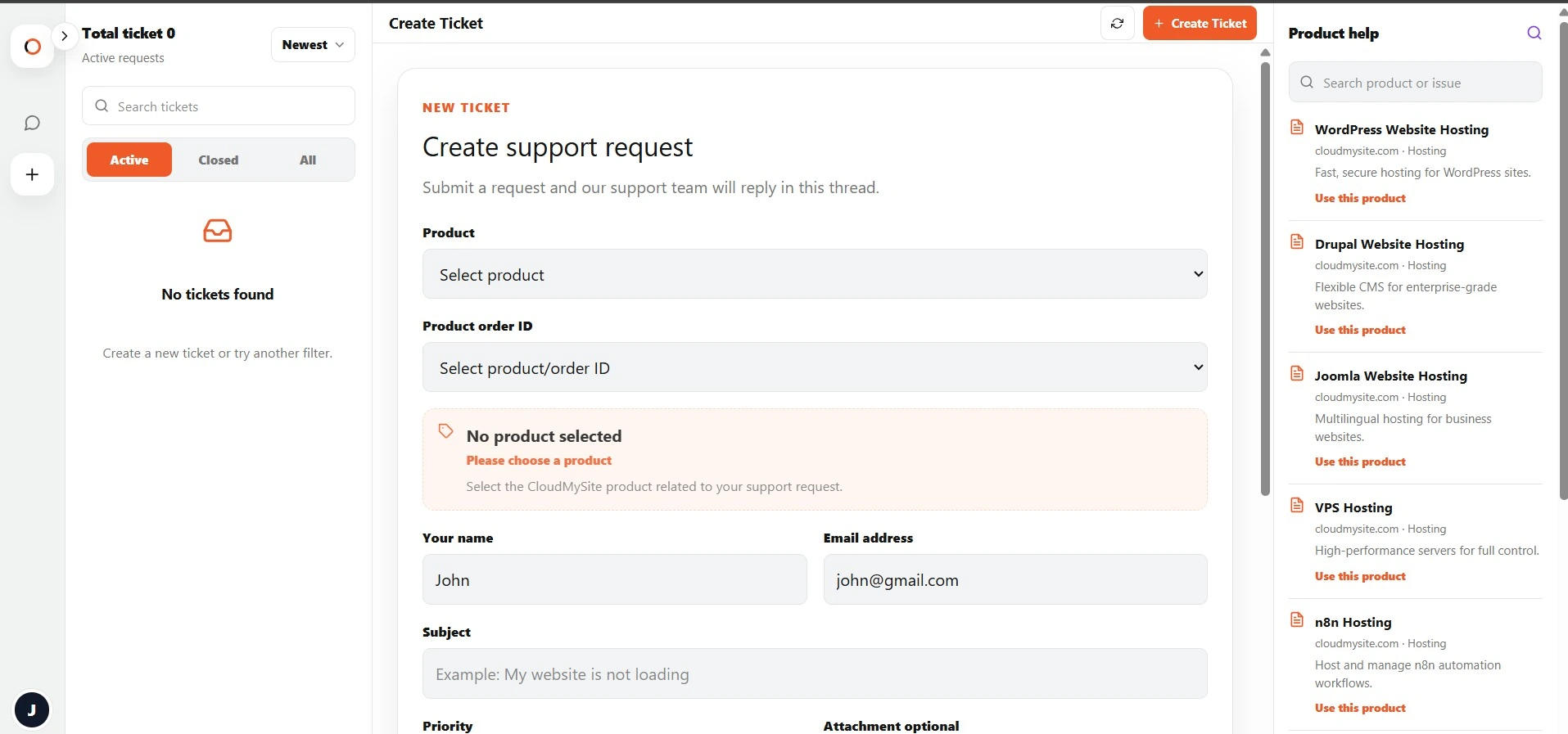
Left menu
The left menu lets you switch between the main support areas:
| Menu item | What it does |
|---|---|
| Tickets | Shows your support tickets. |
| Create Ticket | Opens the form to create a new support request. |
| Profile settings | Shows your account profile details. |
| Light/Dark mode | Changes the visual theme of the Support Center. |
| Logout | Signs you out of your account. |
You can collapse or expand the left menu using the arrow button at the top.
Ticket list
The ticket list shows the tickets connected to your signed-in email address.
Each ticket row usually shows:
- Ticket number
- Customer name
- Subject
- Priority
- Last updated time
- Status indicator
Click a ticket to open the full conversation.
Main workspace
The main workspace changes depending on what you are doing.
It can show:
- Ticket conversation
- Create ticket form
- Empty state when no ticket is selected
- Profile settings
- Loading state while a ticket is opening
Right details panel
The right panel provides extra information.
When you are creating a ticket, it can show product help.
When a ticket is open, it shows ticket details such as:
- Ticket ID
- Customer name
- Email address
- Date submitted
- Product order ID, if selected
- Product label, if selected
- Attachments
Ticket filters
You can filter tickets by status.
| Filter | Meaning |
|---|---|
| Active | Tickets that are still open. |
| Closed | Tickets that have been closed. |
| All | Both active and closed tickets. |
Use the sort dropdown to view tickets from newest to oldest or oldest to newest.
Searching tickets
Use the search box to quickly find a ticket.
You can search by:
- Ticket number
- Subject
- Product
- Product category
- Priority
- Status
- Customer name
Status messages
The Support Center may show status messages at the top of the main area.
Common examples:
| Message type | Meaning |
|---|---|
| Success | Your action was completed. |
| Error | Something needs to be fixed before continuing. |
| Loading | The Support Center is retrieving or saving information. |
When to create a support ticket
Create a support ticket when you need help with:
- Website setup
- Hosting
- Domain setup or transfer
- Business email
- Newsletter
- Forms
- BYOW service
- VPS or hosting issues
- Website not loading
- Billing or order-related questions
- Product access issues
Best practices
When using the Support Center:
- Choose the most relevant product.
- Select a product/order ID if it is shown and related to your issue.
- Write a clear subject.
- Include details about what happened.
- Attach screenshots or documents when useful.
- Reply in the same ticket instead of creating duplicate tickets for the same issue.
- Close the ticket after the issue is resolved.