Image to Video Guide for CloudMySite Video Studio
Image to Video lets you upload a still picture and turn it into a short moving video. Think of it as giving your image a tiny movie director. The image stays as the main idea, and CloudMySite adds movement, camera motion, light, mood, and a little life.
You do not need video editing experience. No timeline. No layers. No "why are there 47 buttons?" moment. Upload the image, write what should move, choose a few simple settings, and generate.
What Image to Video Is
Image to Video is best when you already have a visual you like, such as:
- a product photo
- a brand graphic
- a restaurant or cafe image
- a salon, gym, clinic, or local business photo
- an app or website screenshot
- a generated AI image
- a portrait or character image
- an event poster or promo image
- a real estate, hotel, or venue photo
CloudMySite uses your image as the starting point, then creates a short clip from it. You can use the clip for websites, landing pages, ads, social posts, product demos, and background videos.
When to Use Image to Video
Choose Image to Video when you want the subject in your image to stay recognizable.
Good examples:
| You Have | You Want |
|---|---|
| Product photo | A premium product video with slow camera motion |
| Food photo | Steam, warm light, and gentle movement |
| App screenshot | A clean software preview clip |
| Website hero image | A moving homepage background |
| Event graphic | A short promo video for social media |
| Salon or spa photo | A calm, polished brand clip |
| Real estate photo | A smooth room or property showcase |
Use Text to Video instead when you do not have an image yet and want CloudMySite to imagine the whole scene from your words.
Before You Start
Pick an image that is clear and close to the final look you want.
Best source images are:
- sharp and not blurry
- easy to understand at a quick glance
- not packed with tiny details
- already in the style you want
- free of unwanted watermarks
- close to the shape you need, such as wide, vertical, or square
If your image has a logo, label, face, app screen, or important text, keep the motion gentle. Fast motion can make small details act like they had too much coffee.
How to Create an Image-to-Video Clip
- Open Video Studio.
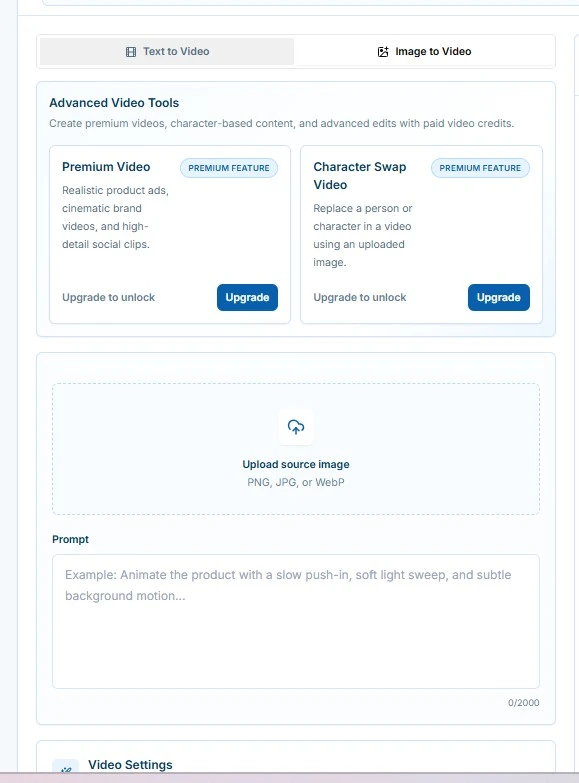
- Select Image to Video.
- Upload your image.
- Write a short prompt that explains how the image should move.
- Choose the video length.
- Pick the shape, such as wide, vertical, or square.
- Choose the quality level available for your plan.
- Pick the motion level.
- Review the credit estimate.
- Select Generate Video.
- Preview the finished clip.
- Download it or use it in your website workflow when available.
The Simple Prompt Formula
Use this simple structure:
Animate this image as a [type of video].
Keep [important subject] stable and recognizable.
Add [camera movement, light, mood, or background motion].
Use [style or feeling].
Avoid [anything you do not want].
Example:
Animate this product image as a premium website hero video.
Keep the product shape, label, and colors stable.
Add a slow camera push-in, soft studio light, and gentle background movement.
Use a clean luxury style. Avoid changing the product or adding text.
What to Say in Your Prompt
The most helpful prompts answer four basic questions:
| Question | Example Answer |
|---|---|
| What is this for? | homepage hero video, product ad, social clip |
| What should stay the same? | product label, face, logo, app layout |
| What should move? | camera, light, background, steam, water, fabric |
| What should it feel like? | calm, premium, playful, cozy, modern |
You can write naturally. "Make this feel like a clean skincare ad" is better than a long sentence full of film words you do not normally use.
Easy Prompt Examples
Product Photo
Animate this product photo with a slow camera push-in and soft studio light.
Keep the product label, shape, and colors stable.
Add subtle background motion only. Avoid changing the product or adding text.
Restaurant or Food Image
Animate this food image with gentle steam, warm light movement, and a slow camera slide.
Keep the dish realistic and appetizing.
Avoid changing the plate, adding text, or making the food look cartoonish.
Website Hero Image
Turn this image into a calm homepage background video.
Add slow cinematic movement, soft depth, and gentle atmosphere.
Keep the center area clean for website text. Avoid fast motion.
App Screenshot
Animate this app screenshot as a short software preview.
Add a subtle camera push-in and soft light motion across the screen.
Keep the layout clear and avoid changing the screen content.
More examples are available in Image-to-Video Prompt Examples.
Choosing the Right Settings
Duration
Start with a short clip. A 5-second video is usually enough for a hero background, product moment, or first test.
Use a longer clip when you need more time for a product reveal, social post, or ad-style movement.
Shape
Pick the shape based on where the video will go:
| Shape | Best For |
|---|---|
| Wide | Website hero sections, desktop banners, YouTube-style previews |
| Vertical | Reels, Shorts, Stories, mobile-first promos |
| Square | Social posts, cards, galleries, product tiles |
Motion
Use motion like seasoning. A little can make the image feel polished. Too much can make your product look like it joined a dance contest without asking.
| Motion | Use It For |
|---|---|
| Low | Products, faces, logos, labels, app screenshots |
| Medium | Most website and social clips |
| High | Energetic scenes, promos, dramatic visuals |
Quality
Use the standard quality for quick tests and drafts. Use higher quality when the video is closer to the final version, especially for website heroes, ads, and polished product clips.
What Works Best
Image to Video works especially well for:
- slow camera push-ins
- smooth camera slides
- gentle background motion
- light sweeps
- steam, sparkle, glow, or atmosphere
- product showcase clips
- calm hero background videos
- social media teasers
What to Avoid
Try not to ask for:
- many scene changes in one short clip
- lots of tiny text
- major redesigns of the uploaded image
- extreme motion on product labels or faces
- several unrelated ideas at once
- "make everything happen" prompts, which sound exciting but usually create visual soup
For Image to Video, it is usually better to say what should stay the same than to ask for a full transformation.
If You Upload While Signed Out
If you start Image to Video while signed out, CloudMySite may save your prompt and settings during sign-in. Your uploaded image may need to be selected again after sign-in because browsers do not always carry local file uploads through a login redirect.
Annoying? A little. Safer? Also yes.
After the Video Is Ready
Once the video finishes, you can usually:
- preview it
- download it
- create another version
- reuse it from recent generations
- add it to a website or project workflow when available
If the first result is close but not perfect, do not start from scratch. Keep the same prompt and change one thing, such as "slower motion," "keep the product more stable," or "make the lighting warmer."
Quick Checklist
Before you generate:
- Is the image clear?
- Did you say what should stay the same?
- Did you describe the motion?
- Did you choose the right shape?
- Did you start with a short test?
- Did you avoid asking for too many things at once?
If yes, you are ready. The image is wearing its little video shoes.