Use Video History, Downloads, and Website Actions
CloudMySite saves your latest video generations in Recent Generations. This makes it easier to reopen a result, download it, create a variation, or use it in a website workflow.
Recent Generations
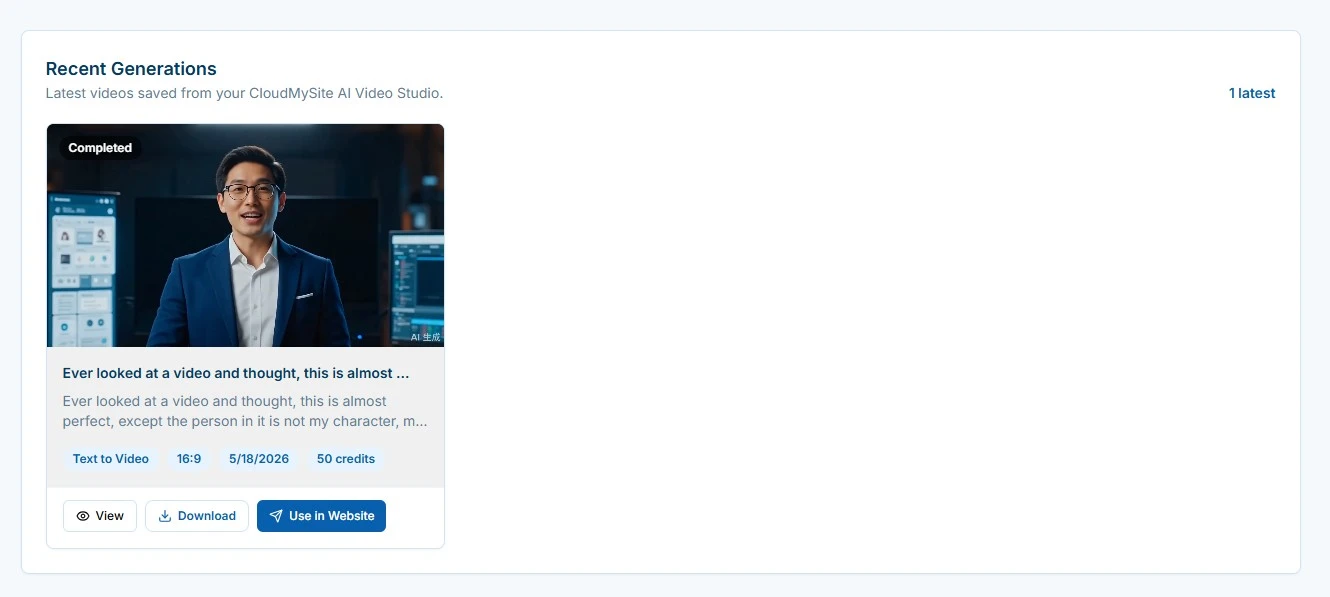
Recent Generations shows your latest saved videos. Each card can include:
- video preview
- generation status
- prompt title
- original prompt
- video mode
- aspect ratio
- credits used
- view, download, and website actions
Select View or select the card to open a video in the preview panel.
Preview a Video
- Open Video Studio.
- Scroll to Recent Generations.
- Select View on a video card.
- The video opens in the preview panel.
- Press play to watch it.
Download a Video
- Open the completed video in the preview panel or find it in Recent Generations.
- Select Download MP4 or Download.
- Save the file to your computer.
- Upload it wherever you need it, such as a website section, social platform, ad tool, or project asset area.
Use a Video in a Website
When available, select Use in Website to send the completed video into the website workflow.
Good places to use generated videos include:
- homepage hero sections
- product feature sections
- service landing pages
- restaurant or venue pages
- app preview areas
- portfolio sections
- social proof or campaign pages
If your workspace asks for another step, download the video and add it through the builder or media upload flow.
Create a Variation
Use Create Variation when the result is close and you want another version.
- Open the completed video.
- Select Create Variation.
- CloudMySite adds a variation direction to the prompt.
- Review the prompt.
- Generate again.
Good variation requests include:
- slower camera movement
- brighter lighting
- more product focus
- cleaner background
- more cinematic mood
- less motion
- stronger brand colors
Regenerate a Video
Use Regenerate when a video failed or when you want CloudMySite to try again from the selected generation.
Before regenerating, consider adjusting:
- prompt clarity
- duration
- motion level
- aspect ratio
- quality
Keep Your Video Library Organized
Use descriptive prompts so your history is easier to scan later. The prompt often becomes the easiest way to remember what a video was for.
Examples:
- "Homepage hero video for dental clinic"
- "Vertical social clip for coffee shop opening"
- "Product demo for reusable water bottle"
- "App dashboard preview for scheduling tool"
Best Practices for Reuse
- Download final videos you know you want to keep.
- Use Recent Generations to compare versions.
- Create variations from the closest result instead of starting over.
- Use clear prompts so your team can recognize each video later.
- Match the video shape to the placement before downloading.