Create Logos and Brand Marks with CloudMySite
Use Logo mode when you want a brand concept, app icon, symbol, or logo direction. Logo mode gives you extra controls for business name, tagline, style direction, and layout.
Logo generation is useful for:
- new business names
- app icons
- product logos
- event marks
- service brand concepts
- internal project branding
- early design exploration before hiring a designer
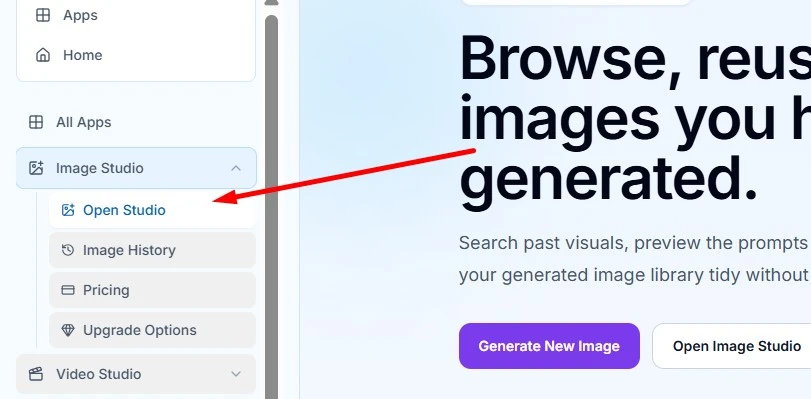
Open Logo Mode
- Open Image Studio.
- Select the Logo tab.
- Enter the business or app name.
- Add an optional tagline.
- Write a logo brief.
- Choose a style direction.
- Choose a logo layout.
- Select Generate.
Logo generation availability depends on your image plan. If the feature is locked, CloudMySite will show an upgrade prompt.
Business or App Name
Use this field for the name you want represented in the logo.
Examples:
- Northstar Pediatric Dental
- Pine & Pearl Candles
- FlowDesk CRM
- BrightPath Tutoring
- Harbor House Cafe
If you choose Icon only, the name may not appear in the image unless you specifically ask for it.
Tagline
The tagline is optional. Use it only when it is short and important.
Examples:
- Smarter scheduling for local teams
- Calm care for growing smiles
- Handmade warmth for every room
- Learn faster with guided practice
Long taglines can be hard for image generation to render cleanly. If your tagline is more than a few words, consider adding it later in the builder instead.
Logo Brief
The logo brief tells CloudMySite what the brand should feel like.
Good logo briefs include:
- audience
- brand personality
- symbol ideas
- color direction
- industry clues
- what to avoid
Example:
Create a friendly logo for a pediatric dental clinic.
It should feel calm, clean, and trustworthy for parents.
Use a simple tooth and star shape, soft blue and mint colors,
rounded forms, and no scary medical imagery.
Style Direction Options
Logo mode includes these style directions:
| Style | Best For |
|---|---|
| Modern | Clean geometry and contemporary polish |
| Minimal | Simple marks with restrained detail |
| Abstract | Conceptual symbols and shape language |
| Tech | Digital, precise, product-focused brands |
| Luxury | Premium, refined, elegant brands |
| Playful | Friendly, energetic, expressive brands |
Choose the style that matches the feeling you want customers to have.
Logo Layout Options
Logo mode includes two layout choices:
- Icon only: a standalone symbol or app mark.
- Icon + wordmark: a symbol paired with the business name.
Use Icon only for app icons, favicon ideas, simple brand marks, or social profile images. Use Icon + wordmark when you want the name included as part of the concept.
Logo Prompt Examples
Modern Service Business Logo
Business name: ClearPath Bookkeeping
Tagline: Simple books, smarter growth
Logo brief: Create a modern logo for a bookkeeping service for small businesses.
Use a clean path or checkmark symbol, navy and green colors, trustworthy and simple.
Avoid coins, cluttered spreadsheets, or cartoon styling.
Style: Modern
Layout: Icon + wordmark
Luxury Brand Mark
Business name: Aurelia Skin Studio
Logo brief: Create a refined beauty studio logo with a soft abstract glow,
elegant lines, warm ivory and gold colors, premium but not flashy.
Style: Luxury
Layout: Icon + wordmark
App Icon
Business name: TaskNest
Logo brief: Create a simple app icon for a team task organizer.
Use a nest-like circular shape made from checkmarks, friendly blue and coral colors,
clear at small sizes, no detailed text.
Style: Tech
Layout: Icon only
Logo Tips
- Keep the business name short when you want a wordmark.
- Use the logo brief to describe feeling and audience.
- Avoid asking for tiny detailed text inside the logo.
- Generate multiple concepts when you are exploring direction.
- Download the best result and test it on light and dark backgrounds.
- Treat generated logos as concepts. For trademark-sensitive brands, have a designer or legal advisor review the final mark.